claude-code.el
Emacs integration for Claude Code CLI — bring Claude AI coding assistance directly into your editor
This Emacs integration for the Claude Code CLI brings Claude AI's coding assistance directly into your editor. Developers can interact with Claude for tasks like error fixing, code analysis, and context-aware prompts without leaving their Emacs buffer. It supports multiple Claude instances, quick responses, and various terminal backends like eat, vterm, and ghostel for a tailored experience. Optional integration with Monet provides advanced IDE features, including diff display and diagnostics.
- Interact with Claude AI without leaving your Emacs buffer
- Point at flycheck/flymake errors and ask Claude to fix them
- Run separate Claude sessions for different projects or tasks
- Send code regions, files, or buffers with smart context
- Answer Claude queries with single keystrokes from any buffer





README
View on GitHub ↗claude-code.el
An Emacs interface for Claude Code CLI, providing integration between Emacs and Claude AI for coding assistance.
Features
- Seamless Emacs Integration - Start, manage, and interact with Claude without leaving Emacs
- Stay in Your Buffer - Send code, regions, or commands to Claude while keeping your focus
- Fix Errors Instantly - Point at a flycheck/flymake error and ask Claude to fix it
- Multiple Instances - Run separate Claude sessions for different projects or tasks
- Quick Responses - Answer Claude with a keystroke (
/ /1/2/3) without switching buffers - Smart Context - Optionally include file paths and line numbers when sending commands to Claude
- Transient Menu - Access all commands and slash commands through a transient menu
- Continue Conversations - Resume previous sessions or fork to earlier points
- Read-Only Mode - Toggle to select and copy text with normal Emacs commands and keybindings
- Mode Cycling - Quick switch between default, auto-accept edits, and plan modes
- Desktop Notifications - Get notified when Claude finishes processing
- Terminal Choice - Works with eat, vterm, and ghostel (libghostty) backends
- Fully Customizable - Configure keybindings, notifications, and display preferences
Installation
Prerequisites
- Emacs 30.0 or higher
- Claude Code CLI installed and configured
- Required: transient (0.7.5+) inheritenv (0.2)
- Optional: eat (0.9.2+) for eat backend, vterm for vterm backend, ghostel for ghostel backend
- Note: If not using a
:vcinstall, theeatpackage requires NonGNU ELPA:(add-to-list 'package-archives '("nongnu" . "https://elpa.nongnu.org/nongnu/"))
- Note: If not using a
- Optional but recommended: Monet for IDE integration
Using builtin use-package (Emacs 30+)
;; add melpa to package archives (vterm and ghostel are on melpa):
(require 'package)
(add-to-list 'package-archives '("melpa" . "https://melpa.org/packages/") t)
(package-initialize)

;; install required inheritenv dependency:
(use-package inheritenv
  :vc (:url "https://github.com/purcell/inheritenv" :rev :newest))

;; for eat terminal backend:
(use-package eat :ensure t)

;; for vterm terminal backend:
(use-package vterm :ensure t)

;; for ghostel terminal backend (libghostty):
(use-package ghostel
  :vc (:url "https://github.com/dakra/ghostel" :rev :newest))

;; install claude-code.el
(use-package claude-code :ensure t
  :vc (:url "https://github.com/stevemolitor/claude-code.el" :rev :newest)
  :config
  ;; optional IDE integration with Monet
  (add-hook 'claude-code-process-environment-functions #'monet-start-server-function)
  (monet-mode 1)

  (claude-code-mode)
  :bind-keymap ("C-c c" . claude-code-command-map)

  ;; Optionally define a repeat map so that "M" will cycle thru Claude auto-accept/plan/confirm modes after invoking claude-code-cycle-mode / C-c M.
  :bind
  (:repeat-map my-claude-code-map ("M" . claude-code-cycle-mode)))
Using straight.el
;; install required inheritenv dependency:
(use-package inheritenv
  :straight (:type git :host github :repo "purcell/inheritenv"))

;; for eat terminal backend:
(use-package eat
  :straight (:type git
                   :host codeberg
                   :repo "akib/emacs-eat"
                   :files ("*.el" ("term" "term/*.el") "*.texi"
                           "*.ti" ("terminfo/e" "terminfo/e/*")
                           ("terminfo/65" "terminfo/65/*")
                           ("integration" "integration/*")
                           (:exclude ".dir-locals.el" "*-tests.el"))))

;; for vterm terminal backend:
(use-package vterm :straight t)

;; for ghostel terminal backend (libghostty):
(use-package ghostel
  :straight (:type git :host github :repo "dakra/ghostel"))

;; install claude-code.el, using :depth 1 to reduce download size:
(use-package claude-code
  :straight (:type git :host github :repo "stevemolitor/claude-code.el" :branch "main" :depth 1
                   :files ("*.el" (:exclude "images/*")))
  :bind-keymap
  ("C-c c" . claude-code-command-map) ;; or your preferred key
  ;; Optionally define a repeat map so that "M" will cycle thru Claude auto-accept/plan/confirm modes after invoking claude-code-cycle-mode / C-c M.
  :bind
  (:repeat-map my-claude-code-map ("M" . claude-code-cycle-mode))
  :config
  ;; optional IDE integration with Monet
  (add-hook 'claude-code-process-environment-functions #'monet-start-server-function)
  (monet-mode 1)

  (claude-code-mode))
Basic Usage
Setting Prefix Key
You need to set your own key binding for the Claude Code command map, as described in the Installation section. The examples in this README use C-c c as the prefix key.
Picking a Terminal Backend
claude-code.el supports three terminal backends:
- eat (default) — pure Elisp terminal emulator, no external dependencies beyond its own Emacs package.
- vterm — libvterm-based terminal; generally snappier than eat but requires compiling a native module.
- ghostel — libghostty-based terminal; typically faster than vterm and renders the Claude TUI most faithfully. Requires the ghostel package.
Switch backends by customizing claude-code-terminal-backend:
;; Use vterm:
(setq claude-code-terminal-backend 'vterm)

;; Use ghostel (libghostty-powered terminal emulator):
(setq claude-code-terminal-backend 'ghostel)
Transient Menu
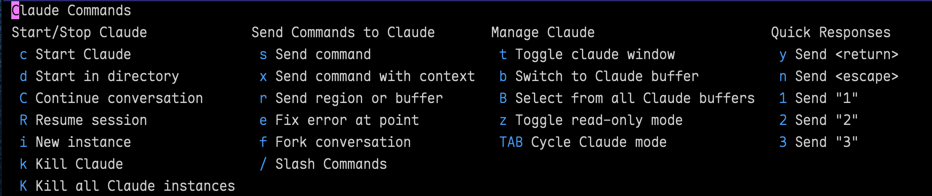
You can see a menu of the important commands by invoking the transient, claude-code-transient (C-c c m):
Starting and Stopping Claude
To start Claude, run claude-code (C-c c c). This will start a new Claude instance in the root
project directory of the buffer file, or the current directory if outside of a project.
Claude-code.el uses Emacs built-in
project.el which works
with most version control systems.
To start Claude in a specific directory use claude-code-start-in-directory (C-c c d). It will
prompt you for the directory.
The claude-code-continue command will continue the previous conversation, and claude-code-resume will let you pick from a list of previous sessions.
To kill the Claude process and close its window use claude-code-kill (C-c c k).
Sending Commands to Claude
Once Claude has started, you can switch to the Claude buffer and start entering prompts.
Alternately, you can send prompts to Claude using the minibuffer via claude-code-send-command
(C-c c s). claude-code-send-command-with-context (C-c c x) will also send the current file name and line
number to Claude. This is useful for asking things like "what does this code do?", or "fix the bug
in this code".
Use the claude-code-send-region (C-c c r) command to send the selected region to Claude, or the entire buffer if no region is selected. This command is useful for writing a prompt in a regular Emacs buffer and sending it to Claude. With a single prefix arg (C-u C-c c r) it will prompt for extra context before sending the region to Claude.
You can also send files directly to Claude using claude-code-send-file to send any file by path, or claude-code-send-buffer-file (C-c c o) to send the file associated with the current buffer. The claude-code-send-buffer-file command supports prefix arguments similar to claude-code-send-region - with a single prefix arg it prompts for instructions, and with double prefix it also switches to the Claude buffer.
If you put your cursor over a flymake or flycheck error, you can ask Claude to fix it via claude-code-fix-error-at-point (C-c c e).
To show and hide the Claude buffer use claude-code-toggle (C-c c t). To jump to the Claude buffer use claude-code-switch-to-buffer (C-c c b). This will open the buffer if hidden.
Managing Claude Windows
The claude-code-toggle (C-c c t) will show and hide the Claude window. Use the claude-code-switch-to-buffer (C-c c b) command to switch to the Claude window even if it is hidden.
To enter read-only mode in the Claude buffer use claude-code-toggle-read-only-mode (C-c c z). In this mode you can select and copy text, and use regular Emacs keybindings. To exit read-only mode invoke claude-code-toggle-read-only-mode again.
Quick Responses
Sometimes you want to send a quick response to Claude without switching to the Claude buffer. The following commands let you answer a query from Claude without leaving your current editing buffer:
claude-code-send-return(C-c c y) - send the return or enter key to Claude, commonly used to respond with "Yes" to Claude queriesyclaude-code-send-escape(C-c c n) - send the escape key, to say "No" to Claude or to cancel a running Claude actionclaude-code-send-1(C-c c 1) - send "1" to Claude, to choose option "1" in response to a Claude queryclaude-code-send-2(C-c c 2) - send "2" to Claudeclaude-code-send-3(C-c c 3) - send "3" to Claude
IDE Integration with Monet
You can optionally use Monet for IDE integration. To integrate Monet with Claude do this (or the equivalent use-package declaration shown above):
(add-hook 'claude-code-process-environment-functions #'monet-start-server-function)
(monet-mode 1)
When Claude starts a new instance it will automatically start a Monet websocket server to listen to and send IDE comments to/from Claude. Current selection will automatically be sent to Claude, and Claude will show diffs in Emacs, use Emacs Monet tools to open files, get diagnostics, etc. See the Monet documentation for more details.
Community Extensions
- claude-code-extras by @lsy83971 — adds a dedicated input buffer for composing multi-line prompts (with send history), an instance manager dashboard (
tabulated-list-mode), same-window display advice, copy/paste support for the vterm backend, and a spinner glyph fix. Worth a look if any of those features fit your workflow.
Working with Multiple Claude Instances
claude-code.el supports running multiple Claude instances across different projects and directories. Each Claude instance is associated with a specific directory (project root, file directory, or current directory).
Instance Management
- When you start Claude with
claude-code, it creates an instance for the current directory - If a Claude instance already exists for the directory, you'll be prompted to name the new instance (e.g., "tests", "docs")
- You can also use
claude-code-new-instanceto explicitly create a new instance with a custom name - Buffer names follow the format:
*claude:/path/to/directory:instance-name*(e.g.,*claude:/home/user/project:tests*)
- If you're in a directory without a Claude instance but have instances running in other directories, you'll be prompted to select one
- Your selection is remembered for that directory, so you won't be prompted again
Instance Selection
Commands that operate on an instance (claude-send-command, claude-code-switch-to-buffer, claude-code-kill, etc.) will prompt you for the Claude instance if there is more than one instance associated with the current buffer's project.
If the buffer file is not associated with a running Claude instance, you can select an instance running in a different project. This is useful when you want Claude to analyze dependent projects or files that you have checked out in sibling directories.
Claude-code.el remembers which buffers are associated with which Claude instances, so you won't be repeatedly prompted. This association also helps claude-code.el "do the right thing" when killing a Claude process and deleting its associated buffer.
Multiple Instances Per Directory
You can run multiple Claude instances for the same directory to support different workflows:
- The first instance in a directory is the "default" instance
- Additional instances require a name when created (e.g., "tests", "docs", "refactor")
- When multiple instances exist for a directory, commands that interact with Claude will prompt you to select which instance to use
- Use
C-u claude-code-switch-to-bufferto see all Claude instances across all directories (not just the current directory) - Use
claude-code-select-bufferas a dedicated command to always show all Claude instances across all directories
This allows you to have separate Claude conversations for different aspects of your work within the same project, such as one instance for writing code and another for writing tests.
Working in the Claude Buffer
claude-code.el is designed to support using Claude Code in Emacs using the minibuffer and regular Emacs buffers, with normal keybindings and full Emacs editing facilities. However, claude-code.el also adds a few niceties for working in the Claude Code terminal buffer:
You can type C-g as an alternative to escape. Also claude-code.el supports several options for
entering newlines in the Claude Code session:
- Default (newline-on-shift-return): Press
Shift-Returnto insert a newline,Returnto send your message - Alt-return style: Press
Alt-Returnto insert a newline,Returnto send - Shift-return to send: Press
Returnto insert a newline,Shift-Returnto send - Super-return to send: Press
Returnto insert a newline,Command-Return(macOS) to send
You can change this behavior by customizing claude-code-newline-keybinding-style (see Customization).
Command Reference
claude-code-transient(C-c c m) - Show all commands (transient menu)claude-code(C-c c c) - Start Claude. With prefix arg (C-u), switches to the Claude buffer after creating. With double prefix (C-u C-u), prompts for the project directoryclaude-code-start-in-directory(C-c c d) - Prompt for a directory and start Claude there. With prefix arg (C-u), switches to the Claude buffer after creatingclaude-code-continue(C-c c C) - Start Claude and continue the previous conversation. With prefix arg (C-u), switches to the Claude buffer after creating. With double prefix (C-u C-u), prompts for the project directoryclaude-code-resume(C-c c R) - Resume a specific Claude session from an interactive list. With prefix arg (C-u), switches to the Claude buffer after creating. With double prefix (C-u C-u), prompts for the project directoryclaude-code-new-instance(C-c c i) - Create a new Claude instance with a custom name. Always prompts for instance name, unlikeclaude-codewhich uses "default" when no instances exist. With prefix arg (C-u), switches to the Claude buffer after creating. With double prefix (C-u C-u), prompts for the project directoryclaude-code-kill(C-c c k) - Kill Claude sessionclaude-code-kill-all(C-c c K) - Kill ALL Claude instances across all directoriesclaude-code-send-command(C-c c s) - Send command to Claude. With prefix arg (C-u), switches to the Claude buffer after sendingclaude-code-send-command-with-context(C-c c x) - Send command with current file and line context. With prefix arg (C-u), switches to the Claude buffer after sendingclaude-code-send-region(C-c c r) - Send the current region or buffer to Claude. With prefix arg (C-u), prompts for instructions to add to the text. With double prefix (C-u C-u), adds instructions and switches to Claude bufferclaude-code-send-file- Send a specified file to Claude. Prompts for file pathclaude-code-send-buffer-file(C-c c o) - Send the file associated with current buffer to Claude. With prefix arg (C-u), prompts for instructions to add to the file. With double prefix (C-u C-u), adds instructions and switches to Claude bufferclaude-code-fix-error-at-point(C-c c e) - Ask Claude to fix the error at the current point (works with flycheck, flymake, and any system that implements help-at-pt). With prefix arg (C-u), switches to the Claude buffer after sendingclaude-code-fork(C-c c f) - Fork conversation (jump to previous conversation by sending escape-escape to Claude)claude-code-slash-commands(C-c c /) - Access Claude slash commands menuclaude-code-toggle(C-c c t) - Toggle Claude windowclaude-code-switch-to-buffer(C-c c b) - Switch to the Claude buffer. With prefix arg (C-u), shows all Claude instances across all directoriesclaude-code-select-buffer(C-c c B) - Select and switch to a Claude buffer from all running instances across all projects and directoriesclaude-code-toggle-read-only-mode(C-c c z) - Toggle between read-only mode and normal mode in Claude buffer (useful for selecting and copying text)claude-code-cycle-mode(C-c c M) - Send Shift-Tab to Claude to cycle between default mode, auto-accept edits mode, and plan mode. See the installation section above to configure a repeat map so that you can cycle thru the modes with "M" after the initial invocation.claude-code-send-return(C-c c y) - Send return key to Claude (useful for confirming with Claude without switching to the Claude REPL buffer) (useful for responding with "Yes" to Claude)claude-code-send-escape(C-c c n) - Send escape key to Claude (useful for saying "No" when Claude asks for confirmation without switching to the Claude REPL buffer)claude-code-send-1(C-c c 1) - Send "1" to Claude (useful for selecting the first option when Claude presents a numbered menu)claude-code-send-2(C-c c 2) - Send "2" to Claude (useful for selecting the second option when Claude presents a numbered menu)claude-code-send-3(C-c c 3) - Send "3" to Claude (useful for selecting the third option when Claude presents a numbered menu)
Desktop Notifications
claude-code.el notifies you when Claude finishes processing and is waiting for input. By default, it displays a message in the minibuffer and pulses the modeline for visual feedback.
macOS Native Notifications
To use macOS native notifications with sound, add this to your configuration:
(defun my-claude-notify (title message)
  "Display a macOS notification with sound."
  (call-process "osascript" nil nil nil
                "-e" (format "display notification \"%s\" with title \"%s\" sound name \"Glass\""
                             message title)))

(setq claude-code-notification-function #'my-claude-notify)
This will display a system notification with a "Glass" sound effect when Claude is ready. You can change the sound name to any system sound (e.g., "Ping", "Hero", "Morse", etc.) or remove the sound name part for silent notifications.
Linux Native Notifications
For Linux desktop notifications, you can use notify-send (GNOME/Unity) or kdialog (KDE):
;; For GNOME/Unity desktops
(defun my-claude-notify (title message)
  "Display a Linux notification using notify-send."
  (if (executable-find "notify-send")
      (call-process "notify-send" nil nil nil title message)
    (message "%s: %s" title message)))

(setq claude-code-notification-function #'my-claude-notify)
To add sound on Linux:
(defun my-claude-notify-with-sound (title message)
  "Display a Linux notification with sound."
  (when (executable-find "notify-send")
    (call-process "notify-send" nil nil nil title message))
  ;; Play sound if paplay is available
  (when (executable-find "paplay")
    (call-process "paplay" nil nil nil "/usr/share/sounds/freedesktop/stereo/message.oga")))

(setq claude-code-notification-function #'my-claude-notify-with-sound)
Windows Native Notifications
For Windows, you can use PowerShell to create toast notifications:
(defun my-claude-notify (title message)
  "Display a Windows notification using PowerShell."
  (call-process "powershell" nil nil nil
                "-NoProfile" "-Command"
                (concat "[Windows.UI.Notifications.ToastNotificationManager, Windows.UI.Notifications, ContentType = WindowsRuntime] | Out-Null; "
                        "$template = '<toast><visual><binding template=\"ToastGeneric\"><text>" title "</text><text>" message "</text></binding></visual></toast>'; "
                        "$xml = New-Object Windows.Data.Xml.Dom.XmlDocument; "
                        "$xml.LoadXml($template); "
                        "$toast = [Windows.UI.Notifications.ToastNotification]::new($xml); "
                        "[Windows.UI.Notifications.ToastNotificationManager]::CreateToastNotifier('Emacs').Show($toast)")))

(setq claude-code-notification-function #'my-claude-notify)
Note: Linux and Windows examples are untested. Feedback and improvements are welcome!
Claude Code Hooks Integration
claude-code.el provides integration to receive hook events from Claude Code CLI via emacsclient.
See examples/hooks/claude-code-hook-examples.el for comprehensive examples of hook listeners and setup functions.
Hook API
claude-code-event-hook- Emacs hook run when Claude Code CLI triggers eventsclaude-code-handle-hook- Unified entry point for all Claude Code CLI hooks. Call this from your CLI hooks with(type buffer-name &rest args)and JSON data as additional emacsclient arguments
JSON Response System
Hooks can return structured JSON data to control Claude Code behavior using run-hook-with-args-until-success:
- Multiple handlers: Register multiple functions on
claude-code-event-hook - Sequential execution: Functions are called in order with the message data
- First response wins: Execution stops when a function returns non-nil JSON
- Bidirectional communication: The JSON response is sent back to Claude Code CLI
This enables interactive workflows like permission prompts where hooks can influence Claude's behavior.
Setup
Add the bin directory to your PATH (required for hook wrapper script):
export PATH="/path/to/claude-code.el/bin:$PATH"Add this to your bash configuration file (~/.bashrc, ~/.bash_profile, etc.) since Claude Code needs it in the bash environment.
Start the Emacs server so that
emacsclientcan communicate with your Emacs instance:;; Start the Emacs server (add this to your init.el) (start-server) ;; Add your hook listeners using standard Emacs functions (add-hook 'claude-code-event-hook 'my-claude-hook-listener)
Custom Hook Listener
Hook listeners receive a message plist with these keys:
:type- Hook type (e.g.,'notification,'stop,'pre-tool-use,'post-tool-use):buffer-name- Claude buffer name from$CLAUDE_BUFFER_NAME:json-data- JSON payload from Claude CLI:args- List of additional arguments (when using extended configuration)
;; Define your own hook listener function
(defun my-claude-hook-listener (message)
  "Custom listener for Claude Code hooks.
MESSAGE is a plist with :type, :buffer-name, :json-data, and :args keys."
  (let ((hook-type (plist-get message :type))
        (buffer-name (plist-get message :buffer-name))
        (json-data (plist-get message :json-data))
        (args (plist-get message :args)))
    (cond
     ((eq hook-type 'notification)
      (message "Claude is ready in %s! JSON: %s" buffer-name json-data))
     ((eq hook-type 'stop)
      (message "Claude finished in %s! JSON: %s" buffer-name json-data))
     (t
      (message "Claude hook: %s with JSON: %s" hook-type json-data)))))

;; Add the hook listener using standard Emacs hook functions
(add-hook 'claude-code-event-hook 'my-claude-hook-listener)
See the examples file for complete listeners that demonstrate notifications, logging, org-mode integration, and using extra arguments from the :args field.
Claude Code CLI Configuration
Configure Claude Code CLI hooks to call claude-code-handle-hook via emacsclient by passing JSON data as an additional argument:
{
  "hooks": {
    "Notification": [
      {
        "matcher": "",
        "hooks": [
          {
            "type": "command",
            "command": "emacsclient --eval \"(claude-code-handle-hook 'notification \\\"$CLAUDE_BUFFER_NAME\\\")\" \"$(cat)\""
          }
        ]
      }
    ],
    "Stop": [
      {
        "matcher": "",
        "hooks": [
          {
            "type": "command",
            "command": "emacsclient --eval \"(claude-code-handle-hook 'stop \\\"$CLAUDE_BUFFER_NAME\\\")\" \"$(cat)\""
          }
        ]
      }
    ]
  }
}
The command pattern:
emacsclient --eval "(claude-code-handle-hook 'notification \"$CLAUDE_BUFFER_NAME\")" "$(cat)" "ARG1" "ARG2" "ARG3"
Where:
"$(cat)"- JSON data from stdin (always required)ARG1is"$PWD"- current working directoryARG2is"$(date -Iseconds)"- timestampARG3is"$$"- process ID
claude-code-handle-hook creates a message plist sent to listeners:
(list :type 'notification
      :buffer-name "$CLAUDE_BUFFER_NAME"
      :json-data "$(cat)"
      :args '("ARG1" "ARG2" "ARG3"))
See the Claude Code hooks documentation for details on setting up CLI hooks.
Tips and Tricks
- Paste images: Use
C-vto paste images into the Claude window. Note that on macOS, this isControl-v, notCommand-v. - Paste text: Use
C-y(yank) to paste text into the Claude window. - Save files before sending commands: Claude reads files directly from disk, not from Emacs buffers. Always save your files (
C-x C-s) before sending commands that reference file content. Consider enablingglobal-auto-revert-modeto automatically sync Emacs buffers with file changes made by Claude:(global-auto-revert-mode 1) ;; If files aren't reliably auto-reverting after Claude makes changes, ;; disable file notification and use polling instead: (setq auto-revert-use-notify nil) - Auto-revert with hooks: For more control over buffer reverting, use the auto-revert hook example that listens for Claude's file edits:
Then configure the PostToolUse hook in your;; Load the auto-revert hook (load-file "examples/hooks/claude-code-auto-revert-hook.el") ;; Set up auto-revert (choose one): (setup-claude-auto-revert) ; Safe mode - skips modified buffers (setup-claude-auto-revert-aggressive) ; Prompts to revert modified buffers (setup-claude-auto-revert-org) ; Special handling for org files~/.claude/settings.json(seeexamples/hooks/auto-revert-settings.json)
Customization
;; Set your key binding for the command map.
(global-set-key (kbd "C-c C-a") claude-code-command-map)

;; Set terminal type for the Claude terminal emulation (default is "xterm-256color").
;; This determines terminal capabilities like color support.
;; See the documentation for eat-term-name for more information.
(setq claude-code-term-name "xterm-256color")

;; Change the path to the Claude executable (default is "claude").
;; Useful if Claude is not in your PATH or you want to use a specific version.
(setq claude-code-program "/usr/local/bin/claude")

;; Set command line arguments for Claude
;; For example, to enable verbose output
(setq claude-code-program-switches '("--verbose"))

;; Add hooks to run after Claude is started
(add-hook 'claude-code-start-hook 'my-claude-setup-function)

;; Adjust initialization delay (default is 0.1 seconds)
;; This helps prevent terminal layout issues if the buffer is displayed before Claude is fully ready.
(setq claude-code-startup-delay 0.2)

;; Configure the buffer size threshold for confirmation prompt (default is 100000 characters)
;; If a buffer is larger than this threshold, claude-code-send-region will ask for confirmation
;; before sending the entire buffer to Claude.
(setq claude-code-large-buffer-threshold 100000)

;; Configure key binding style for entering newlines and sending messages in Claude buffers.
;; Available styles:
;;   'newline-on-shift-return - S-return inserts newline, RET sends message (default)
;;   'newline-on-alt-return   - M-return inserts newline, RET sends message
;;   'shift-return-to-send    - RET inserts newline, S-return sends message
;;   'super-return-to-send    - RET inserts newline, s-return sends message (Command+Return on macOS)
(setq claude-code-newline-keybinding-style 'newline-on-shift-return)

;; Enable or disable notifications when Claude finishes and awaits input (default is t).
(setq claude-code-enable-notifications t)

;; Customize the notification function (default is claude-code--default-notification).
;; The function should accept two arguments: title and message.
;; The default function displays a message and pulses the modeline for visual feedback.
(setq claude-code-notification-function 'claude-code--default-notification)

;; Example: Use your own notification function
(defun my-claude-notification (title message)
  "Custom notification function for Claude Code."
  ;; Your custom notification logic here
  (message "[%s] %s" title message))
(setq claude-code-notification-function 'my-claude-notification)

;; Configure kill confirmation behavior (default is t).
;; When t, claude-code-kill prompts for confirmation before killing instances.
;; When nil, kills Claude instances without confirmation.
(setq claude-code-confirm-kill t)

;; Enable/disable window resize optimization (de
Similar other
MiroFish
Swarm intelligence engine for future prediction — simulates multi-agent interactions to deduce outcomes


paperclip
AI agent orchestration server for autonomous companies — manages teams of bots, goals, budgets, and governance


learn-claude-code
Agent harness engineering tutorial — build the environment and tools for real LLM agents, inspired by Claude Code


LightRAG
Lightweight RAG framework — builds simple, fast, and scalable retrieval-augmented generation systems for LLMs


