better-ccflare
Claude API proxy (MCP server) for rate limit bypass — intelligent load balancing across multiple accounts, real-time analytics
better-ccflare is a self-hosted Claude API proxy that eliminates rate limit errors by intelligently distributing requests across multiple Anthropic accounts and other compatible providers. It provides real-time monitoring of OAuth token health, request-level analytics, and deep debugging capabilities through a web UI. This open-source server offers enhanced security, a powerful CLI, and supports both SQLite and PostgreSQL for persistent storage.
- Automatically distributes requests across multiple Claude accounts
- Supports Claude, Vertex AI, Bedrock, and OpenAI-compatible APIs
- Monitors OAuth token health with automatic refresh and indicators
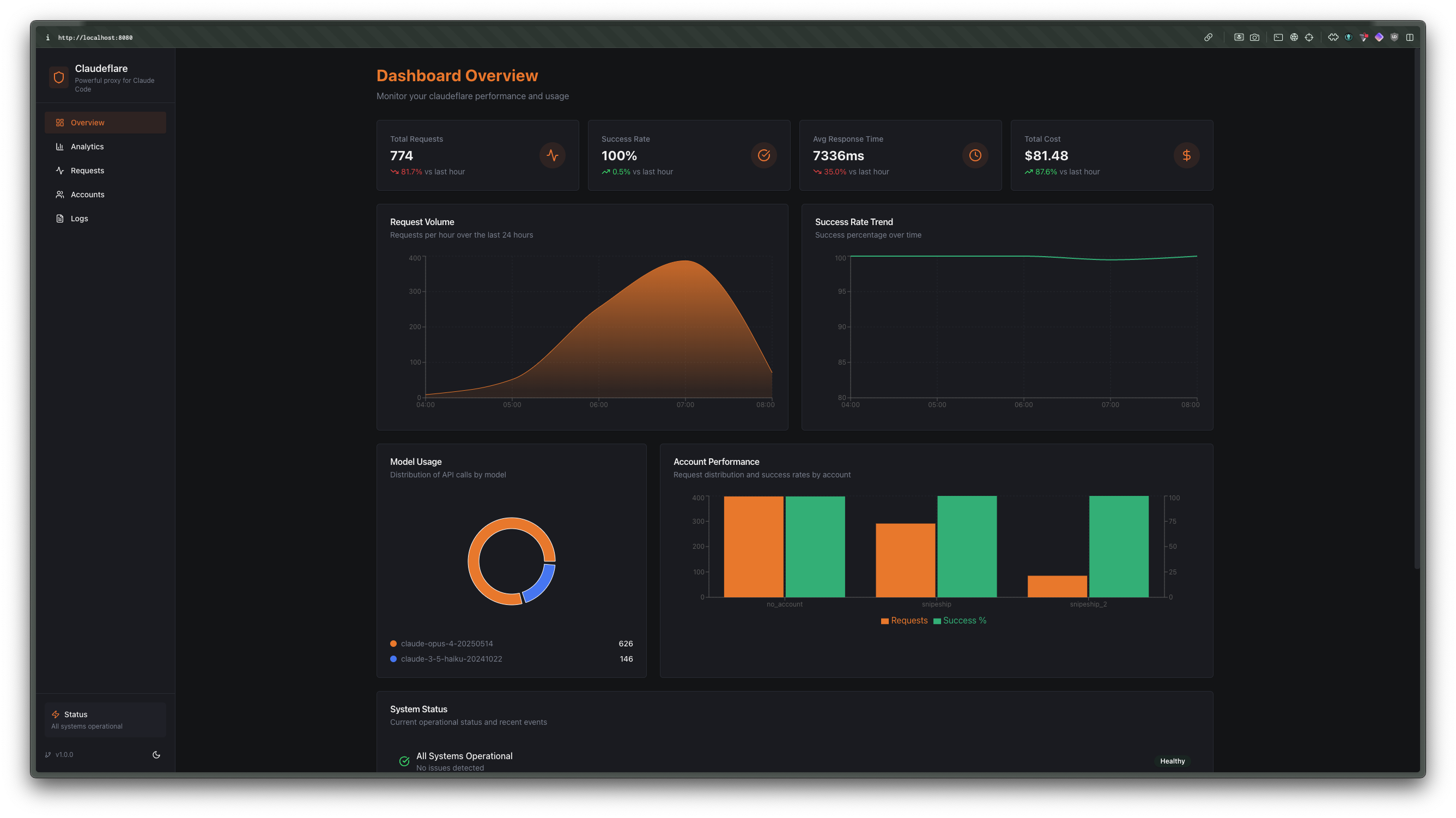
- Tracks latency, token usage, and costs with a real-time dashboard
- Includes critical security fixes for common vulnerabilities


README
View on GitHub ↗better-ccflare 🛡️

Track Every Request. Go Low-Level. Never Hit Rate Limits Again.
The ultimate Claude API proxy with intelligent load balancing across multiple accounts. Full visibility into every request, response, and rate limit.
https://github.com/user-attachments/assets/c859872f-ca5e-4f8b-b6a0-7cc7461fe62a
Why better-ccflare?
- 🚀 Zero Rate Limit Errors - Automatically distribute requests across multiple accounts
- 🤖 Multi-Provider Support - Claude OAuth, Claude API console, Vertex AI, AWS Bedrock, NanoGPT, z.ai, Minimax, OpenRouter, Kilo, Codex (OpenAI OAuth), Anthropic-compatible, and OpenAI-compatible providers
- 🔒 OAuth Token Health - Real-time monitoring of OAuth token status with automatic refresh and health indicators
- 🔗 Custom API Endpoints - Configure custom endpoints for Anthropic accounts for enterprise deployments
- ☁️ OpenAI-Compatible Support - Use OpenAI-compatible providers like OpenRouter, Together AI, and more with Claude API format
- 🔄 Smart Auto-Fallback - Automatically switch back to preferred accounts when their rate limits reset
- ⚡ Auto-Refresh - Automatically start new usage windows when rate limits reset with 30-minute buffer
- 📊 Request-Level Analytics - Track latency, token usage, and costs in real-time with optimized batch processing
- 🔍 Deep Debugging - Full request/response logging and error traces
- 🔐 API Authentication - Optional API key authentication with secure key management
- ⚡ <10ms Overhead - Minimal performance impact with lazy loading and request deduplication
- 🛡️ Security Hardened - Critical security fixes for authentication bypass, command injection, and credential leakage
- 💸 Free & Open Source - Run it yourself, modify it, own your infrastructure
Why this fork?
This project builds upon the excellent foundation of snipeship/ccflare with significant enhancements:
🎯 Core Improvements (v3.0.0):
- Enhanced Security - Critical fixes for authentication bypass, command injection, and PKCE implementation
- OAuth Token Health Monitoring - Real-time status indicators and automatic token refresh with 30-minute buffer
- Extended Provider Support - AWS Bedrock, NanoGPT (with dynamic pricing), Minimax, OpenRouter, Kilo, Codex (OpenAI OAuth), Anthropic-compatible, and OpenAI-compatible providers
- Simplified Load Balancing - Removed tier system for O(1) priority-based selection
- Real-time Analytics Dashboard - Beautiful web UI with fixed request history (no disappearing requests)
- Package Distribution - Available via npm and bun for easy installation
🛠️ Developer Experience:
- Powerful CLI - Complete command-line interface for account management and configuration
- REST API - Complete API for automation and integration
- Cross-Platform Binary - Pre-compiled binary works with Node.js or Bun
- Comprehensive Logging - Request/response tracking with searchable history
- Database Integration - SQLite (default) or PostgreSQL for persistent storage and analytics, supporting Kubernetes multi-pod deployments
📦 Distribution & Updates:
- npm/bun Registry - Install with
npm install -g better-ccflareorbun install -g better-ccflare - npx/bunx Support - Run without installation:
npx better-ccflareorbunx better-ccflare - Smart Update Detection - Web UI detects package manager and shows appropriate update commands
- Version Management - Semantic versioning with automatic update notifications
🏢 Production Ready:
- Enterprise Features - Custom API endpoints, session management, advanced analytics
- Performance Optimized - <10ms overhead with request deduplication and caching
- Reliability - Automatic error recovery, circuit breakers, and health monitoring
- Scalability - Built for high-throughput production environments
- PostgreSQL Support - Set
DATABASE_URL=postgresql://...to use PostgreSQL for Kubernetes multi-pod deployments where SQLite file-sharing is not feasible
Quick Start
Install via npm (Linux x86_64)
npm install -g better-ccflare

# Start better-ccflare (Server + Dashboard)
better-ccflare
Continue to Configure Claude SDK.
⚠️ Windows npm Installation Issue: If you installed via npm on Windows and encounter a path error like "C:\\Program Files\\nodejs\\\\node_modules\\better-ccflare\\dist\\better-ccflare" is either misspelled or could not be found, this is a known npm bug on Windows affecting how npm generates wrapper scripts. See Windows Troubleshooting for workarounds.
Install via bun
bun install -g better-ccflare

# Start better-ccflare (Server + Dashboard)
better-ccflare
Continue to Configure Claude SDK.
Install Pre-compiled Binary (All Architectures)
Download the appropriate binary for your platform from GitHub Releases:
Linux x86_64
wget https://github.com/tombii/better-ccflare/releases/latest/download/better-ccflare-linux-amd64
chmod +x better-ccflare-linux-amd64
./better-ccflare-linux-amd64
Continue to Configure Claude SDK.
Linux ARM64 (Raspberry Pi 3/4/5, Oracle Cloud ARM, AWS Graviton)
wget https://github.com/tombii/better-ccflare/releases/latest/download/better-ccflare-linux-arm64
chmod +x better-ccflare-linux-arm64
./better-ccflare-linux-arm64
Continue to Configure Claude SDK.
macOS Intel
curl -L -o better-ccflare-macos-x86_64 https://github.com/tombii/better-ccflare/releases/latest/download/better-ccflare-macos-x86_64
chmod +x better-ccflare-macos-x86_64

# Remove quarantine attribute (required on macOS to run unsigned binaries)
xattr -d com.apple.quarantine better-ccflare-macos-x86_64

./better-ccflare-macos-x86_64
Continue to Configure Claude SDK.
macOS Apple Silicon
curl -L -o better-ccflare-macos-arm64 https://github.com/tombii/better-ccflare/releases/latest/download/better-ccflare-macos-arm64
chmod +x better-ccflare-macos-arm64

# Remove quarantine attribute (required on macOS to run unsigned binaries)
xattr -d com.apple.quarantine better-ccflare-macos-arm64

./better-ccflare-macos-arm64
Continue to Configure Claude SDK.
macOS Gatekeeper Notice: Our macOS binaries are not notarized by Apple as this requires a paid Apple Developer subscription. After downloading, you must remove the quarantine attribute using the xattr command shown above to run the binary. If you prefer not to run unsigned binaries, you can install from source instead.
Windows x86_64
Download better-ccflare-windows-x64.exe and run it.
Continue to Configure Claude SDK.
Run without installation (npx/bunx)
# Run with npx (downloads and executes latest version)
npx better-ccflare@latest

# Run with bunx (faster for bun users)
bunx better-ccflare@latest
Continue to Configure Claude SDK.
Install from source
# Clone and install
git clone https://github.com/tombii/better-ccflare
cd better-ccflare
bun install

# Build dashboard (required before first run)
bun run build

# Start better-ccflare (TUI + Server)
bun run better-ccflare
Continue to Configure Claude SDK.
Note: You must run bun run build at least once to build the dashboard files before starting the server. This can also be done by running bun run better-ccflare which includes the build step.
Environment Variables
better-ccflare supports several environment variables for configuration:
# Server Configuration
PORT=8080                              # Server port (default: 8080)
BETTER_CCFLARE_HOST=0.0.0.0           # Server binding host (default: 0.0.0.0, use 127.0.0.1 for localhost-only)
CLIENT_ID=your-client-id              # OAuth client ID
BETTER_CCFLARE_CONFIG_PATH=/path/to/config.json  # Custom config location
BETTER_CCFLARE_DB_PATH=/path/to/database.db  # Custom database path (default: ~/.config/better-ccflare/better-ccflare.db)
                                       # Use this for development/testing with a separate database

# Logging and Debugging
LOG_LEVEL=INFO                         # Log level (ERROR, WARN, INFO, DEBUG)
LOG_FORMAT=json                        # Log format (json or text)
better-ccflare_DEBUG=0                  # Enable debug mode (1 for enabled)

# SSL/TLS Configuration
SSL_KEY_PATH=/path/to/key.pem          # SSL private key path (for HTTPS)
SSL_CERT_PATH=/path/to/cert.pem        # SSL certificate path (for HTTPS)

# Load Balancing
LB_STRATEGY=session                    # Load balancing strategy (default: session)
SESSION_DURATION_MS=18000000           # Session duration in milliseconds (5 hours)

# Retry Configuration
RETRY_ATTEMPTS=3                       # Number of retry attempts
RETRY_DELAY_MS=1000                   # Initial retry delay in milliseconds
RETRY_BACKOFF=2                        # Retry backoff multiplier

# Storage
STORE_PAYLOADS=false                   # Disable storing request/response bodies (reduces DB size and memory usage)
                                       # Token counts, costs, model, status and timing are still recorded

# Streaming Timeouts
# Agentic workloads (e.g. recursive claude-code-sdk sessions) can leave the outer
# stream silent for minutes while sub-calls run. Increase these if long-running
# nested calls appear failed or missing in the UI (issue #84).
CF_STREAM_TOTAL_TIMEOUT_MS=1800000     # Max total stream duration per request (default: 30 minutes)
CF_STREAM_CHUNK_TIMEOUT_MS=300000      # Max silence between consecutive chunks (default: 5 minutes)

# Payload encryption at rest (optional)
# When set, request/response payloads are encrypted with AES-256-GCM before
# being written to `request_payloads`. Existing plaintext rows remain readable.
# Generate with: openssl rand -hex 32
PAYLOAD_ENCRYPTION_KEY=                # 64-character hex (32 bytes / AES-256). Unset = plaintext storage.
Encryption notes:
- Without a key, payloads are stored as plaintext (no behavior change from prior versions).
- Losing the key makes encrypted rows unreadable — payload reads throw rather than silently returning garbage. Back the key up alongside the database.
- The key is read once at process start (and once per Bun worker). Rotating it requires a re-encrypt migration; not yet built.
Security Notes:
- Use
BETTER_CCFLARE_HOST=127.0.0.1to bind only to localhost for better security - Never commit
.envfiles containing sensitive values to version control - Use environment-specific configuration for production deployments
Using .env Files
better-ccflare automatically supports .env files for easy configuration management. You can create a .env file in your project directory:
# Copy the example .env file
cp .env.example .env
# Edit with your configuration
nano .env
Supported across all deployment methods:
- CLI Binary: Automatically loads
.envfrom current working directory - Docker Compose: Automatically loads
.envfrom the same directory asdocker-compose.yml - Docker: Mount your
.envfile or pass variables directly
Example .env file:
# Server Configuration
PORT=8080

# SSL/TLS Configuration (optional)
SSL_KEY_PATH=/path/to/ssl/key.pem
SSL_CERT_PATH=/path/to/ssl/cert.pem

# Load Balancing
LB_STRATEGY=session

# Logging and Debugging
LOG_LEVEL=INFO
LOG_FORMAT=pretty

# Database configuration
DATA_RETENTION_DAYS=7
REQUEST_RETENTION_DAYS=365

# Storage (set to false to skip storing request/response bodies, reducing DB size and memory pressure)
STORE_PAYLOADS=true
Usage with different deployment methods:
# CLI (binary or local development)
better-ccflare --serve

# Docker Compose (place .env alongside docker-compose.yml)
docker-compose up

# Docker (mount .env file)
docker run -v $(pwd)/.env:/app/.env:ro -p 8080:8080 ghcr.io/tombii/better-ccflare:latest
Docker (Multi-Platform: linux/amd64, linux/arm64)
# Quick start with docker-compose
curl -O https://raw.githubusercontent.com/tombii/better-ccflare/main/docker-compose.yml

# Optional: Create and configure .env file
cp .env.example .env
# Edit .env with your settings (SSL, port, etc.)
nano .env

# Start with docker-compose (automatically loads .env file)
docker-compose up -d

# Or use docker run with environment variables
docker run -d \
  --name better-ccflare \
  -p 8080:8080 \
  -v better-ccflare-data:/data \
  -e SSL_KEY_PATH=/path/to/ssl/key.pem \
  -e SSL_CERT_PATH=/path/to/ssl/cert.pem \
  ghcr.io/tombii/better-ccflare:latest

# View logs
docker logs -f better-ccflare
Once the container is running, open http://localhost:8080 in your browser to add and manage accounts through the Web UI. This is the recommended way — using docker exec to run CLI commands inside the container won't work for OAuth-based account modes since the container has no browser.
🆕 Environment Variable Support: Docker Compose now automatically loads .env files from the same directory as docker-compose.yml. Simply create a .env file alongside your docker-compose.yml file and the container will use those settings.
Available Docker tags:
latest- Latest stable releasemain- Latest build from main branch1.2.28,1.2,1- Specific version tagssha-abc123- Commit-specific tags
See DOCKER.md for detailed Docker documentation.
Systemd Deployment
For running better-ccflare as a native systemd service on Linux (without Docker), see the Systemd Deployment Guide. It covers unit file configuration, memory management with --smol, restart policies, and a preflight script that prevents BUN_JSC_* environment variable crashes.
Configure Claude SDK
Option 1: Using Claude CLI with OAuth (Recommended if you have Claude Pro/Team)
If you have a Claude Pro or Team subscription and are logged into Claude CLI:
# Set only the base URL - no API key needed!
export ANTHROPIC_BASE_URL=http://localhost:8080

# Make sure to configure your accounts in the better-ccflare dashboard

# Start Claude CLI (uses your existing login)
claude
Important: When using Claude CLI with an active OAuth login, do NOT set ANTHROPIC_AUTH_TOKEN. Setting both will trigger a warning from Claude CLI about conflicting authentication methods.
Option 2: Using API Key Authentication
If you're NOT using Claude CLI's OAuth login, or prefer API key authentication:
# First, logout from Claude CLI if you're currently logged in
claude /logout

# Then set both the base URL and API key
export ANTHROPIC_BASE_URL=http://localhost:8080

# If better-ccflare has NO API keys configured (open access):
export ANTHROPIC_AUTH_TOKEN=dummy-key

# If better-ccflare HAS API keys configured (protected):
# Generate a key first: better-ccflare --generate-api-key "My VPS"
export ANTHROPIC_AUTH_TOKEN=btr-abcdef1234567890...  # Use your real better-ccflare API key

# Make sure to configure your accounts in the better-ccflare dashboard

# Start Claude CLI
claude
Option 3: Remote/Headless VPS Setup (Secure Proxy)
Use better-ccflare on a trusted server to avoid storing OAuth credentials on untrusted/temporary machines:
On your trusted server (running better-ccflare):
# Add your Claude account with OAuth
better-ccflare --add-account myaccount --mode claude-oauth --priority 0

# Generate an API key for remote access
better-ccflare --generate-api-key "Remote VPS"
# Save the generated key: btr-abcdef1234567890...

# Start the server (ensure it's accessible remotely)
better-ccflare --serve
On your untrusted/temporary VPS:
# Set the remote better-ccflare URL and API key
export ANTHROPIC_BASE_URL=https://your-server.com:8080
export ANTHROPIC_AUTH_TOKEN=btr-abcdef1234567890...  # Your better-ccflare API key

# Start Claude CLI (no need to login - better-ccflare handles auth)
claude
How it works:
- Claude Code CLI sends requests with your better-ccflare API key
- better-ccflare validates the API key and proxies requests using its stored OAuth credentials
- Your OAuth credentials stay secure on your trusted server
- You can use Claude Code on any machine without storing sensitive credentials
Which method should I use?
- Have Claude Pro/Team and working locally? Use Option 1 (OAuth only) - simpler and no API key needed
- Working on untrusted/temporary machines? Use Option 3 (Remote VPS setup) - keeps credentials secure
- Using only API keys in better-ccflare? Use Option 2 (logout + API key)
- Getting auth conflict warnings? You have both methods active - choose one and follow its steps above
SSL/HTTPS Configuration
To enable HTTPS with better-ccflare, you'll need SSL certificates. Here are your options:
Option 1: Generate Self-Signed Certificates (Development/Local Use)
# Generate a self-signed certificate on the better-ccflare host
openssl req -x509 -newkey rsa:2048 -keyout key.pem -out cert.pem -days 365 -nodes \
  -subj "/C=US/ST=State/L=City/O=Organization/CN=yourhostname"

# Start better-ccflare with SSL
export SSL_KEY_PATH=/path/to/key.pem
export SSL_CERT_PATH=/path/to/cert.pem
better-ccflare

# Or use command line flags
better-ccflare --ssl-key /path/to/key.pem --ssl-cert /path/to/cert.pem
Trust the self-signed certificate on client machines:
For self-signed certificates, you need to add the certificate to your system's trusted certificates:
Linux (Ubuntu/Debian):
# Copy cert.pem from the better-ccflare host to your client machine
sudo cp cert.pem /usr/local/share/ca-certificates/better-ccflare.crt
sudo update-ca-certificates
Linux (Arch/Manjaro):
# Copy cert.pem from the better-ccflare host to your client machine
sudo cp cert.pem /etc/ca-certificates/trust-source/anchors/better-ccflare.crt
sudo trust extract-compat
macOS:
# Copy cert.pem from the better-ccflare host to your client machine
sudo security add-trusted-cert -d -r trustRoot -k /Library/Keychains/System.keychain cert.pem
Windows (PowerShell as Administrator):
# Copy cert.pem from the better-ccflare host to your client machine
Import-Certificate -FilePath cert.pem -CertStoreLocation Cert:\LocalMachine\Root
Configure Claude Code to use the trusted certificate:
After adding the certificate to your system's trusted store, configure your environment:
# Add to your ~/.bashrc or ~/.zshrc
export NODE_OPTIONS="--use-system-ca"
export ANTHROPIC_BASE_URL=https://yourhostname:8080
The NODE_OPTIONS="--use-system-ca" is required for Claude Code and other Node.js-based clients to use the system certificate store. Without this, Node.js will not trust your self-signed certificate even if it's in the system store.
Option 2: Use Production Certificates (Production/Remote Access)
If you're running better-ccflare on a server with a domain name, use Let's Encrypt or your certificate provider:
# Using Let's Encrypt certificates
export SSL_KEY_PATH=/etc/letsencrypt/live/yourdomain.com/privkey.pem
export SSL_CERT_PATH=/etc/letsencrypt/live/yourdomain.com/fullchain.pem
better-ccflare

# Set the base URL to use HTTPS
export ANTHROPIC_BASE_URL=https://yourdomain.com:8080
With production certificates from trusted CAs, you don't need NODE_OPTIONS="--use-system-ca" as they are already trusted.
Option 3: Docker with Traefik (Recommended for Production)
For Docker deployments, we recommend using Traefik as a reverse proxy to handle TLS automatically with Let's Encrypt:
# docker-compose.yml
version: '3.8'

services:
  traefik:
    image: traefik:v3.0
    command:
      - "--api.insecure=true"
      - "--providers.docker=true"
      - "--entrypoints.web.address=:80"
      - "--entrypoints.websecure.address=:443"
      - "--certificatesresolvers.myresolver.acme.tlschallenge=true"
      - "--certificatesresolvers.myresolver.acme.email=your-email@example.com"
      - "--certificatesresolvers.myresolver.acme.storage=/letsencrypt/acme.json"
    ports:
      - "80:80"
      - "443:443"
    volumes:
      - /var/run/docker.sock:/var/run/docker.sock:ro
      - ./letsencrypt:/letsencrypt
    restart: unless-stopped

  better-ccflare:
    image: ghcr.io/tombii/better-ccflare:latest
    labels:
      - "traefik.enable=true"
      - "traefik.http.routers.ccflare.rule=Host(`your-domain.com`)"
      - "traefik.http.routers.ccflare.entrypoints=websecure"
      - "traefik.http.routers.ccflare.tls.certresolver=myresolver"
      - "traefik.http.services.ccflare.loadbalancer.server.port=8080"
    volumes:
      - ~/.config/better-ccflare:/root/.config/better-ccflare
    restart: unless-stopped
Benefits:
- Automatic TLS certificate generation and renewal via Let's Encrypt
- No need to manually manage SSL certificates
- Built-in HTTP to HTTPS redirection
- Dashboard for monitoring (port 8080 on Traefik)
Client Configuration:
export ANTHROPIC_BASE_URL=https://your-domain.com
No NODE_OPTIONS needed - Traefik provides trusted certificates automatically!
Troubleshooting SSL Issues
Problem: "Unable to connect to API due to poor internet connection" error even with ANTHROPIC_BASE_URL set
Solutions:
Verify the environment variable is set in the same shell/session:
echo $ANTHROPIC_BASE_URL
echo $NODE_OPTIONS
Test the SSL connection manually:
# Should succeed without errors
curl https://yourhostname:8080/health

# If you see certificate errors, the cert isn't trusted yet
curl -k https://yourhostname:8080/health  # -k bypasses cert check for testing
Verify the certificate is in the system store:
# Linux
ls -la /etc/ssl/certs/ | grep better-ccflare

# macOS
security find-certificate -a -c yourhostname -p /Library/Keychains/System.keychain
Ensure the hostname resolves correctly:
ping yourhostnameCheck that the server is actually running:
curl -k https://yourhostname:8080/health
Windows Troubleshooting
Issue: "Command is misspelled or could not be found" after npm install
If you installed better-ccflare via npm on Windows and encounter an error like:
The command "C:\Program Files\nodejs\\node_modules\better-ccflare\dist\better-ccflare" is either
misspelled or could not be found.
This is a known npm bug on Windows (see npm/cli#969 and nodejs/node#39010) affecting how npm generates wrapper scripts with double backslashes in paths.
Workarounds
Option 1: Use npx (Recommended)
npx better-ccflare
This bypasses the npm wrapper script entirely and runs better-ccflare directly.
Option 2: Use the Pre-compiled Binary
Download the standalone Windows executable from GitHub Releases:
# Download better-ccflare-windows-x64.exe and run it directly
.\better-ccflare-windows-x64.exe
Option 3: Update npm
Sometimes updating to the latest npm version fixes the issue:
npm install -g npm@latest
npm install -g better-ccflare
Option 4: Direct Execution
If you need to use the npm-installed version, you can execute the binary directly:
node "%APPDATA%\npm\node_modules\better-ccflare\dist\better-ccflare"
Option 5: Use Bun Package Manager
Bun doesn't have this bug and works correctly on Windows:
# Install bun from https://bun.sh
bun install -g better-ccflare
better-ccflare
Root Cause
This issue is caused by a bug in npm's wrapper script generation on Windows, where it incorrectly constructs paths with double backslashes (\\nodejs\\\\node_modules). This is a longstanding npm bug that affects many CLI packages, not just better-ccflare.
The issue is being tracked in:
- npm/cli#969 - Generated .cmd script bugs
- nodejs/node#39010 - Double slashes in Windows paths
We recommend using one of the workarounds above until the npm bug is fixed.
Features
🎯 Intelligent Load Balancing
- Session-based - Maintain conversation context for Claude OAuth accounts (5hr usage windows), pay-as-you-go for other providers
- Auto-fallback - Automatically switch back to higher priority Claude OAuth accounts when their usage windows reset
- Auto-refresh - Automatically start new usage windows when they reset
- Usage Window Alignment - Sessions automatically align with Claude OAuth usage window resets for optimal resource utilization
🔗 Combos — Cross-Provider Fallback Chains
- Named Combos - Create named fallback chains with ordered (account, model) slots
- Family Activation - Assign one combo per model family (Opus, Sonnet, Haiku) — independent activation toggles
- Auto Waterfall - Requests automatically fall through slots top-to-bottom, skipping unavailable accounts (rate-limited, paused)
- Per-Slot Model Override - Each slot can use a different model, enabling cross-model fallback (e.g., try Opus on provider A, then Sonnet on provider B)
- SessionStrategy Fallback - If all combo slots fail, automatically falls back to normal session-based routing
- Dashboard Management - Drag-and-drop slot builder with account provider badges, enable/disable per combo, and family assignment UI
📈 Real-Time Analytics
- Token usage tracking per request with optimized batch processing
- Response time monitoring with intelligent caching
- Rate limit detection and warnings
- Cost estimation and budgeting
- Request deduplication for improved performance
- Lazy-loaded analytics components for faster initial load
- Advanced filtering by accounts, models, API keys, and request status
- API key performance tracking and detailed analytics
🛠️ Developer Tools
- Powerful CLI (
better-ccflare) - Web dashboard (
http://localhost:8080/dashboard) - CLI for account management
- REST API for automation
🔒 Production Ready
- Automatic failover between accounts
- OAuth token refresh handling
- SQLite database for persistence
- Configurable retry logic
- Custom endpoint support for enterprise deployments
- Enhanced performance with request batching and caching
☁️ Multi-Provider Support
- Claude OAuth - Anthropic OAuth accounts with 5-hour usage windows and session tracking (rate limit window based)
- Claude Console API - Anthropic API key accounts with pay-as-you-go model (no session tracking)
- AWS Bedrock - Native AWS Bedrock integration with SigV4 authentication, inference profile support (geographic/global/regional), and automatic credential chain resolution via AWS CLI profiles
- Vertex AI - Google Cloud Vertex AI integration with service account authentication
- z.ai, Minimax - API key based providers with pay-as-you-go model
- OpenRouter - OpenRouter integration with native API support and model mapping
- Kilo - Kilo API integration with usage tracking
- Anthropic-Compatible - Custom Anthropic-compatible providers with pay-as-you-go model
- OpenAI-Compatible - OpenAI-compatible providers (Together AI, etc.) with Claude API format
- Universal API Format - Use OpenAI-compatible providers with Claude API format
- Automatic Format Conversion - Seamless conversion between Anthropic and OpenAI request/response formats
- Model Mapping - Map Claude models (Opus, Sonnet, Haiku) to equivalent OpenAI models
- Model Fallbacks - Automatically retry with a fallback model when the requested model is unavailable (e.g., fallback from Opus to Sonnet on Pro subscriptions)
- Streaming Support - Full support for streaming responses from OpenAI-compatible providers
- API Key Authentication - Secure API key management for OpenAI-compatible providers
- Cost Tracking - Automatic cost calculation for usage monitoring and budgeting
Troubleshooting Database Issues
If you encounter "All accounts failed" errors, the database runs integrity checks automatically on startup and will guide you to repair if needed. You can also manually run:
bun run cli --repair-db
This will check integrity, fix NULL values, validate constraints, and optimize the database. See the Troubleshooting Guide for more details.
Documentation
Full documentation available in docs/:
Similar mcp servers
Scrapling
MCP server for adaptive web scraping — bypasses anti-bot systems, auto-relocates elements on page changes


OpenBB
Open-source financial data platform for AI agents — consolidates proprietary, licensed, and public data sources


ruflo
Multi-agent orchestration MCP server for Claude Code — deploys swarms, coordinates workflows, learns from outcomes


Vibe-Trading
MCP server for algorithmic trading — turns natural language into executable strategies, research, and portfolio analysis


