claude-code-tips
Awesome-list of Claude Code tips — optimize workflows, manage context, and integrate voice for faster development
This awesome-list provides 45 concrete tips for Claude Code users to enhance productivity and master agentic workflows. It covers context management, voice interaction, Git integration, and includes a custom status line script and plugin recommendations. Learn to slim down system prompts, use subagents, and leverage CLI tools for advanced operations.
- Customize Claude Code status line with context and usage
- Strategies for compacting and managing AI context
- Integrate voice input for faster Claude Code interaction
- Leverage Git and GitHub CLI for automated tasks
- Break down complex problems into solvable sub-tasks


README
View on GitHub ↗45 Claude Code Tips: From Basics to Advanced
Here are my tips for getting the most out of Claude Code, including a custom status line script, cutting the system prompt in half, using Gemini CLI as Claude Code's minion, and Claude Code running itself in a container. Also includes the dx plugin.
📺 Quick demo - See some of these tips in action with a multi-Claude workflow and voice input:
Table of Contents
- Tip 0: Customize your status line
- Tip 1: Learn a few essential slash commands
- Tip 2: Talk to Claude Code with your voice
- Tip 3: Break down large problems into smaller ones
- Tip 4: Using Git and GitHub CLI like a pro
- Tip 5: AI context is like milk; it's best served fresh and condensed!
- Tip 6: Getting output out of your terminal
- Tip 7: Set up terminal aliases for quick access
- Tip 8: Proactively compact your context
- Tip 9: Complete the write-test cycle for autonomous tasks
- Tip 10: Cmd+A and Ctrl+A are your friends
- Tip 11: Use Gemini CLI as a fallback for blocked sites
- Tip 12: Invest in your own workflow
- Tip 13: Search through your conversation history
- Tip 14: Multitasking with terminal tabs
- Tip 15: Slim down the system prompt
- Tip 16: Git worktrees for parallel branch work
- Tip 17: Manual exponential backoff for long-running jobs
- Tip 18: Claude Code as a writing assistant
- Tip 19: Markdown is the s**t
- Tip 20: Use Notion to preserve links when pasting
- Tip 21: Containers for long-running risky tasks
- Tip 22: The best way to get better at using Claude Code is by using it
- Tip 23: Clone/fork and half-clone conversations
- Tip 24: Use realpath to get absolute paths
- Tip 25: Understanding CLAUDE.md vs Skills vs Slash Commands vs Plugins
- Tip 26: Interactive PR reviews
- Tip 27: Claude Code as a research tool
- Tip 28: Mastering different ways of verifying its output
- Tip 29: Claude Code as a DevOps engineer
- Tip 30: Keep CLAUDE.md simple and review it periodically
- Tip 31: Claude Code as the universal interface
- Tip 32: It's all about choosing the right level of abstraction
- Tip 33: Audit your approved commands
- Tip 34: Write lots of tests (and use TDD)
- Tip 35: Be braver in the unknown; iterative problem solving
- Tip 36: Running bash commands and subagents in the background
- Tip 37: The era of personalized software is here
- Tip 38: Navigating and editing your input box
- Tip 39: Spend some time planning, but also prototype quickly
- Tip 40: Simplify overcomplicated code
- Tip 41: Automation of automation
- Tip 42: Share your knowledge and contribute where you can
- Tip 43: Keep learning!
- Tip 44: Install the dx plugin
- Tip 45: Quick setup script
Tip 0: Customize your status line
You can customize the status line at the bottom of Claude Code to show useful info. I set mine up to show the model, current directory, git branch (if any), uncommitted file count, sync status with origin, and a visual progress bar for token usage. It also shows a second line with my last message so I can see what the conversation was about:
Opus 4.5 | 📁claude-code-tips | 🔀main (scripts/context-bar.sh uncommitted, synced 12m ago) | ██░░░░░░░░ 18% of 200k tokens
💬 This is good. I don't think we need to change the documentation as long as we don't say that the default color is orange el...
This is especially helpful for keeping an eye on your context usage and remembering what you were working on. The script also supports 10 color themes (orange, blue, teal, green, lavender, rose, gold, slate, cyan, or gray).
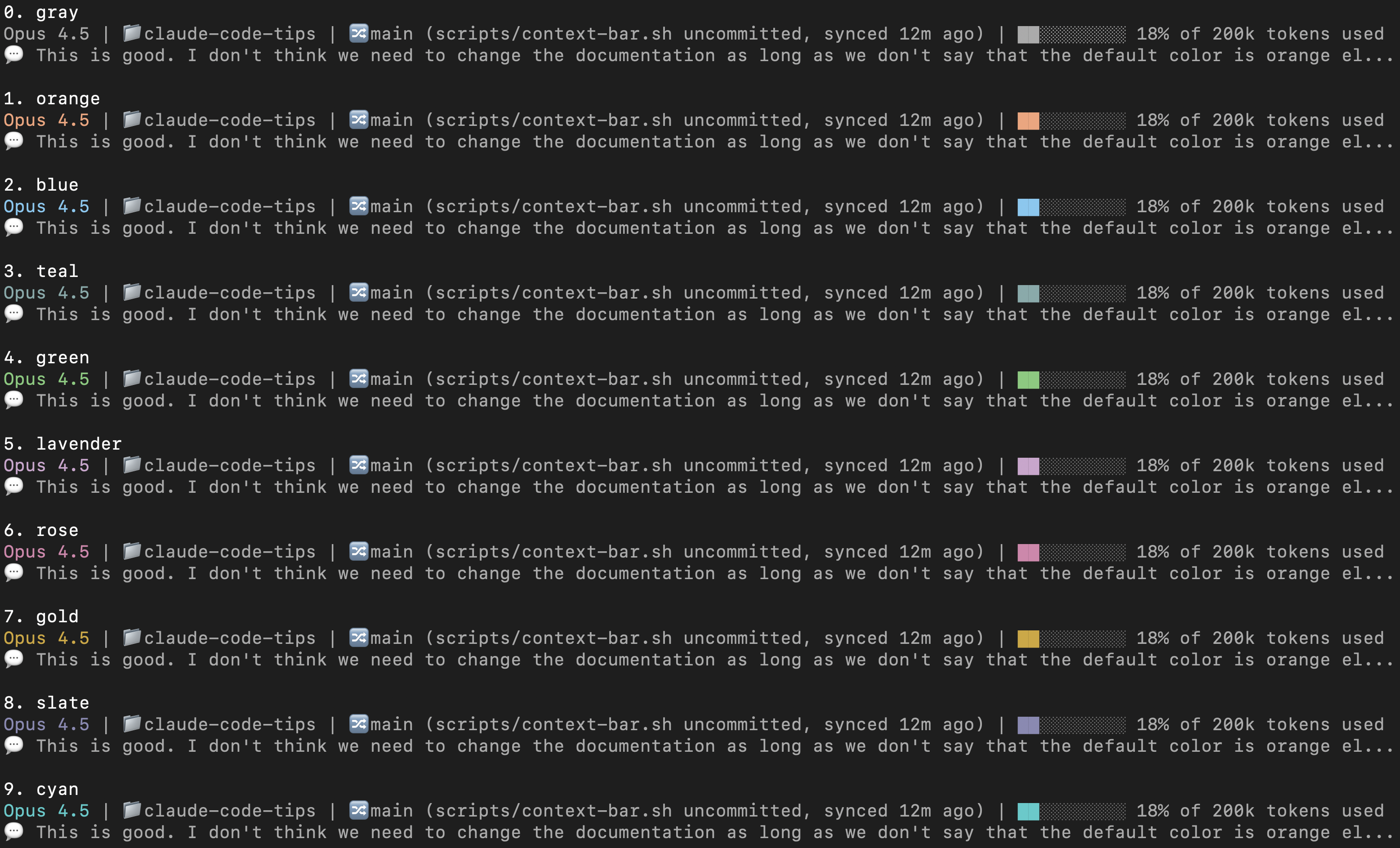
To set this up, you can use this sample script and check the setup instructions.
Tip 1: Learn a few essential slash commands
There are a bunch of built-in slash commands (type / to see them all). Here are a few worth knowing:
/usage
Check your rate limits:
 Current session
 █████████▌                                         19% used
 Resets 12:59am (America/Vancouver)

 Current week (all models)
 █████████████████████▌                             43% used
 Resets Feb 3 at 1:59pm (America/Vancouver)

 Current week (Sonnet only)
 ███████████████████▌                               39% used
 Resets 8:59am (America/Vancouver)
If you want to watch your usage closely, keep it open in a tab and use Tab then Shift+Tab or ← then → to refresh.
/chrome
Toggle Claude's native browser integration:
> /chrome
Chrome integration enabled
/mcp
Manage MCP (Model Context Protocol) servers:
 Manage MCP servers
 1 server

 ❯ 1. playwright  ✔ connected · Enter to view details

 MCP Config locations (by scope):
  • User config (available in all your projects):
    • /Users/yk/.claude.json
/stats
View your usage statistics with a GitHub-style activity graph:
      Feb Mar Apr May Jun Jul Aug Sep Oct Nov Dec Jan
      ··········································▒█░▓░█░▓▒▒
  Mon ·········································▒▒██▓░█▓█░█
      ·········································░▒█▒▓░█▒█▒█
  Wed ········································░▓▒█▓▓░▒▓▒██
      ········································░▓░█▓▓▓▓█░▒█
  Fri ········································▒░░▓▒▒█▓▓▓█
      ········································▒▒░▓░░▓▒▒░░

      Less ░ ▒ ▓ █ More

  Favorite model: Opus 4.5        Total tokens: 17.6m

  Sessions: 4.1k                  Longest session: 20h 40m 45s
  Active days: 79/80              Longest streak: 75 days
  Most active day: Jan 26         Current streak: 74 days

  You've used ~24x more tokens than War and Peace
/clear
Clear the conversation and start fresh.
Tip 2: Talk to Claude Code with your voice
I found that you can communicate much faster with your voice than typing with your hands. Using a voice transcription system on your local machine is really helpful for this.
On my Mac, I've tried a few different options:
- superwhisper
- MacWhisper
- Super Voice Assistant (open source, supports Parakeet v2/v3)
You can get more accuracy by using a hosted service, but I found that a local model is strong enough for this purpose. Even when there are mistakes or typos in the transcription, Claude is smart enough to understand what you're trying to say. Sometimes you need to say certain things extra clearly, but overall local models work well enough.
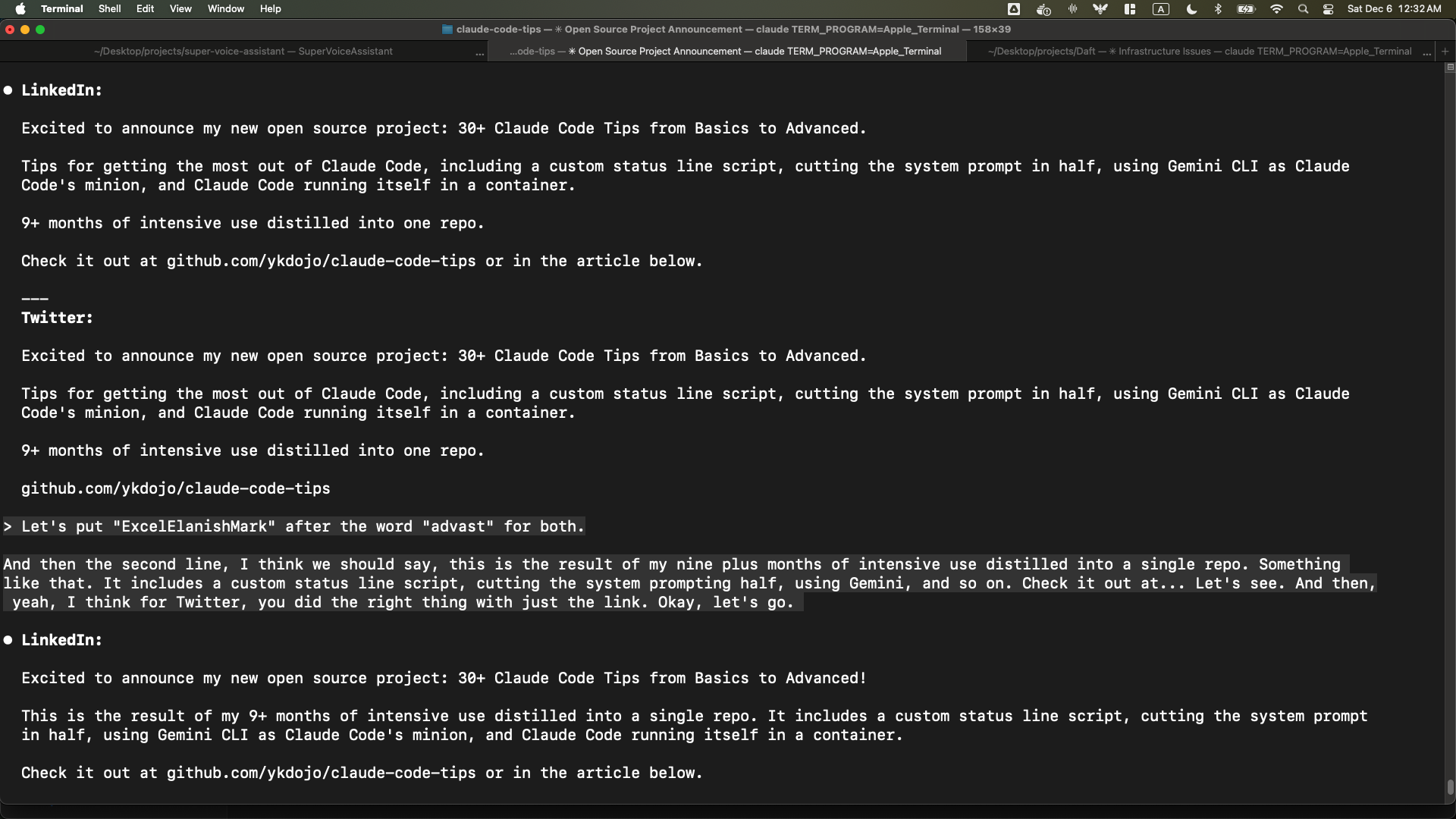
For example, in this screenshot you can see that Claude was able to interpret mistranscribed words like "ExcelElanishMark" and "advast" correctly as "exclamation mark" and "Advanced":
I think the best way to think about this is like you're trying to communicate with your friend. Of course, you can communicate through texts. That might be easier for some people, or emails, right? That's totally fine. That's what most people seem to do with Claude Code. But if you want to communicate faster, why wouldn't you get on a quick phone call? You can just send voice messages. You don't need to literally have a phone call with Claude Code. Just send a bunch of voice messages. It's faster, at least for me, as someone who's practiced the art of speaking a lot over the past number of years. But I think for a majority of people, it's going to be faster too.
A common objection is "what if you're in a room with other people?" I just whisper using earphones - I personally like Apple EarPods (not AirPods). They're affordable, high quality enough, and you just whisper into them quietly. I've done it in front of other people and it works well. In offices, people talk anyway - instead of talking to coworkers, you're talking quietly to your voice transcription system. I don't think there's any problem with that. This method works so well that it even works on a plane. It's loud enough that other people won't hear you, but if you speak close enough to the mic, your local model can still understand what you're saying. (In fact, I'm writing this very paragraph using that method on a flight.)
Update: Claude Code now has a built-in voice mode. I tested it and it works well, but I still personally use a local model because I find it faster.
Tip 3: Break down large problems into smaller ones
This is one of the most important concepts to master. It's exactly the same as traditional software engineering - the best software engineers already know how to do this, and it applies to Claude Code too.
If you find that Claude Code isn't able to one-shot a difficult problem or coding task, ask it to break it down into multiple smaller issues. See if it can solve an individual part of that problem. If it's still too hard, see if it can solve an even smaller sub-problem. Keep going until everything is solvable.
Essentially, instead of going from A to B:

You can go from A to A1 to A2 to A3, then to B:

A good example of this is when I was building my own voice transcription system. I needed to build a system that could let the user select and download a model, take keyboard shortcuts, start transcribing, put the transcribed text at the user's cursor, and wrap all of this in a nice UI. That's a lot. So I broke it down into smaller tasks. First, I created an executable that would just download a model, nothing else. Then I created another one that would just record voice, nothing else. Then another one that would just transcribe pre-recorded audio. I completed them one by one like that before combining them at the end.
Highly related to this: your problem-solving skills and software engineering skills are still highly relevant in the world of agentic coding and Claude Code. It's able to solve a lot of problems on its own, but when you apply your general problem-solving and software engineering skills to it, it becomes a lot more powerful.
Tip 4: Using Git and GitHub CLI like a pro
Just ask Claude to handle your Git and GitHub CLI tasks. This includes committing (so you don't have to write commit messages manually), branching, pulling, and pushing.
I personally allow pull automatically but not push, because push is riskier - it doesn't contaminate the origin if something goes wrong with a pull.
For GitHub CLI (gh), there's a lot you can do. One thing I started doing more after using Claude Code is creating draft PRs. This lets Claude Code handle the PR creation process with low risk - you can review everything before marking it ready for review.
And it turns out, gh is pretty powerful. You can even send arbitrary GraphQL queries through it. For example, you can even find the exact times at which GitHub PR descriptions were edited:
⏺ Bash(gh api graphql -f query='
      query {
        repository(owner: "...", name: "...") {
          pullRequest(number: ...) {
            userContentEdits(first: 100) {
              nodes { editedAt editor { login } }
            }
          }
        }
      }')

⏺ Here's the full edit history for your PR description:

  | #  | Edited At (UTC)     | Editor |
  |----|---------------------|--------|
  | 1  | 2025-12-01 00:08:34 | ykdojo |
  | 2  | 2025-12-01 15:57:21 | ykdojo |
  | 3  | 2025-12-01 16:24:33 | ykdojo |
  | 4  | 2025-12-01 16:27:00 | ykdojo |
  | 5  | 2025-12-04 00:40:02 | ykdojo |
  ...
Disable commit/PR attribution
By default, Claude Code adds a Co-Authored-By trailer to commits and an attribution footer to PRs. You can disable both by adding this to ~/.claude/settings.json:
{
  "attribution": {
    "commit": "",
    "pr": ""
  }
}
Setting both to empty strings removes the attribution entirely. This replaces the older includeCoAuthoredBy setting, which is now deprecated.
Tip 5: AI context is like milk; it's best served fresh and condensed!
When you start a new conversation with Claude Code, it performs the best because it doesn't have all the added complexity of having to process the previous context from earlier parts of the conversation. But as you talk to it longer and longer, the context gets longer and the performance tends to go down.
So it's best to start a new conversation for every new topic, or if the performance starts to go down.
Tip 6: Getting output out of your terminal
Sometimes you want to copy and paste Claude Code's output, but copying directly from the terminal isn't always clean. Here are a few ways to get content out more easily:
/copycommand: The simplest option - just type/copyto copy Claude's last response to your clipboard as markdown- Clipboard directly: On Mac or Linux, ask Claude to use
pbcopyto send output straight to your clipboard - Write to a file: Have Claude put the content in a file, then ask it to open it in VS Code (or your favorite editor) so you can copy from there. You can also specify a line number, so you can ask Claude to open the specific line it just edited. For markdown files, once it's open in VS Code, you can use Cmd+Shift+P (or Ctrl+Shift+P on Linux/Windows) and select "Markdown: Open Preview" to see the rendered version
- Opening URLs: If there's a URL you want to examine yourself, ask Claude to open it in your browser. On Mac, you can ask it to use the
opencommand, but in general asking to open in your favorite browser should work on any platform - GitHub Desktop: You can ask Claude to open the current repo in GitHub Desktop. This is particularly useful when it's working in a non-root directory - for example, if you asked it to create a git worktree in a different directory and you haven't opened Claude Code from there yet
You can combine some of these together too. For example, if you want to edit a GitHub PR description, instead of having Claude edit it directly (which it might mess up), you can have it copy the content into a local file first. Let it edit that, check the result yourself, and once it looks good, have it copy and paste it back into the GitHub PR. That works really well. Or if you want to do that yourself, you can just ask it to open it in VS Code or give it to you via pbcopy so you can copy and paste it manually.
Of course, you can run these commands yourself, but if you find yourself doing it repetitively, it's helpful to let Claude run them for you.
Tip 7: Set up terminal aliases for quick access
Since I use the terminal more because of Claude Code, I found it helpful to set up short aliases so I can launch things quickly. Here are the ones I use:
cfor Claude Code (this is the one I use the most)chfor Claude Code with Chrome integrationgbfor GitHub Desktopcofor VS Codeqfor going to the project directory where I have most projects. From there I can manually cd into an individual folder to work on that project, or I can just launch Claude Code withcto let it basically have access to any project it needs to access.
To set these up, add lines like this to your shell config file (~/.zshrc or ~/.bashrc):
alias c='claude'
alias ch='claude --chrome'
alias gb='github'
alias co='code'
alias q='cd ~/Desktop/projects'
Once you have these aliases, you can combine them with flags: c -c continues your last conversation, and c -r shows a list of recent conversations to resume. These work with ch too (ch -c, ch -r) for Chrome sessions.
Tip 8: Proactively compact your context
There's a /compact command in Claude Code that summarizes your conversation to free up context space. Automatic compaction also happens when the full available context is filled. The total available context window for Opus 4.5 is currently 200k, and 45k of that is reserved for automatic compaction. About 10% of the total 200k is automatically filled with the system prompt, tools, memory, and dynamic context. But I found that it's better to proactively do it and manually tune it. I turned off auto-compact with /config so I have more context available for the main conversation and more control over when and how compaction happens.
The way I do this is to ask Claude to write a handoff document before starting fresh. Something like:
Put the rest of the plan in the system-prompt-extraction folder as HANDOFF.md. Explain what you have tried, what worked, what didn't work, so that the next agent with fresh context is able to just load that file and nothing else to get started on this task and finish it up.
Claude will create a file summarizing the current state of work:
⏺ Write(experiments/system-prompt-extraction/HANDOFF.md)
  ⎿  Wrote 129 lines to experiments/system-prompt-extraction/HANDOFF.md
     # System Prompt Slimming - Handoff Document
     ## Goal
     Reduce Claude Code's system prompt by ~45% (currently at 11%, need ~34% more).
     ## Current Progress
     ### What's Been Done
     - **Backup/restore system**: `backup-cli.sh` and `restore-cli.sh` with SHA256 verification
     - **Patch system**: `patch-cli.js` that restores from backup then applies patches
     ...
After Claude writes it, review it quickly. If something's missing, ask for edits:
Did you add a note about iteratively testing instead of trying to do everything all at once?
Then start a fresh conversation. For the fresh agent, you can just give the path of the file and nothing else like this, and it should work just fine:
> experiments/system-prompt-extraction/HANDOFF.md
In subsequent conversations, you can ask the agent to update the document for the next agent.
I've also created a /handoff slash command that automates this - it checks for an existing HANDOFF.md, reads it if present, then creates or updates it with the goal, progress, what worked, what didn't, and next steps. You can find it in the skills folder, or install it via the dx plugin.
Alternative: Use plan mode
Another option is to use plan mode. Enter it with /plan or Shift+Tab. Ask Claude to gather all the relevant context and create a comprehensive plan for the next agent:
I just enabled plan mode. Bring over all of the context that you need for the next agent. The next agent will not have any other context, so you'll need to be pretty comprehensive.
Claude will explore the codebase, gather context, and write a detailed plan. When it's done, you'll see options like:
Would you like to proceed?

❯ 1. Yes, clear context and auto-accept edits (shift+tab)
  2. Yes, auto-accept edits
  3. Yes, manually approve edits
  4. Type here to tell Claude what to change
Option 1 clears the previous context and starts fresh with the plan. The new Claude instance sees only the plan, so it can focus without the baggage of the old conversation. It also gets a link to the old transcript file in case it needs to look up specific details.
Tip 9: Complete the write-test cycle for autonomous tasks
If you want Claude Code to run something autonomously, like git bisect, you need to give it a way to verify results. The key is completing the write-test cycle: write code, run it, check the output, and repeat.
For example, let's say you're working on Claude Code itself and you notice /compact stopped working and started throwing a 400 error. A classic tool to find the exact commit that caused this is git bisect. The nice thing is you can let Claude Code run bisect on itself, but it needs a way to test each commit.
For tasks that involve interactive terminals like Claude Code, you can use tmux. The pattern is:
- Start a tmux session
- Send commands to it
- Capture the output
- Verify it's what you expect
Here's a simple example of testing if /context works:
tmux kill-session -t test-session 2>/dev/null
tmux new-session -d -s test-session
tmux send-keys -t test-session 'claude' Enter
sleep 2
tmux send-keys -t test-session '/context' Enter
sleep 1
tmux capture-pane -t test-session -p
Once you have a test like this, Claude Code can run git bisect and automatically test each commit until it finds the one that broke things.
This is also an example of why your software engineering skills still matter. If you're a software engineer, you probably know about tools like git bisect. That knowledge is still really valuable when working with AI - you just apply it in new ways.
Another example is simply writing tests. After you let Claude Code write some code, if you want to test it, you can just let it write tests for itself too. And let it run on its own and fix things if it can. Of course, it doesn't always go in the right direction and you need to supervise it sometimes, but it's able to do a surprising amount of coding tasks on its own.
Creative testing strategies
Sometimes you need to be creative with how you complete the write-test cycle. For example, if you're building a web app, you could use Playwright MCP, Chrome DevTools MCP, or Claude's native browser integration (through /chrome). I haven't tried Chrome DevTools yet, but I've tried Playwright and Claude's native integration. Overall, Playwright generally works better. It does use a lot of context, but the 200k context window is normally enough for a single task or a few smaller tasks.
The main difference between these two seems to be that Playwright focuses on the accessibility tree (structured data about page elements) rather than taking screenshots. It does have the ability to take screenshots, but it doesn't normally use them to take actions. On the other hand, Claude's native browser integration focuses more on taking screenshots and clicking on elements by specific coordinates. It can click on random things sometimes, and the whole process can be slow.
This might improve over time, but by default I would go with Playwright for most tasks that aren't visually intensive. I'd only use Claude's native browser integration if I need to use a logged-in state without having to provide credentials (since it runs in your own browser profile), or if it specifically needs to click on things visually using their coordinates.
This is why I disable Claude's native browser integration by default and use it through the ch shortcut I defined previously. That way Playwright handles most browser tasks, and I only enable Claude's native integration when I specifically need it.
Additionally, you can ask it to use accessibility tree refs instead of coordinates. Here's what I put in my CLAUDE.md for this:
# Claude for Chrome

- Use `read_page` to get element refs from the accessibility tree
- Use `find` to locate elements by description
- Click/interact using `ref`, not coordinates
- NEVER take screenshots unless explicitly requested by the user
In my personal experience, I've also had a situation where I was working on a Python library (Daft) and needed to test a version I built locally on Google Colab. The trouble is it's hard to build a Python library with a Rust backend on Google Colab - it doesn't seem to work that well. So I needed to actually build a wheel locally and then upload it manually so that I could run it on Google Colab. I also tried monkey patching, which worked well in the short term before I had to wait for the whole wheel to build locally. I came up with these testing strategies and executed them by going back and forth with Claude Code.
Another situation I encountered is I needed to test something on Windows but I'm not running a Windows machine. My CI tests on the same repo were failing because we had some issues with Rust on Windows, and I had no way of testing locally. So I needed to create a draft PR with all the changes, and another draft PR with the same changes plus enabling Windows CI runs on non-main branches. I instructed Claude Code to do all of that, and then I tested the CI directly in that new branch.
Tip 10: Cmd+A and Ctrl+A are your friends
I've been saying this for a few years now: Cmd+A and Ctrl+A are friends in the world of AI. This applies to Claude Code too.
Sometimes you want to give Claude Code a URL, but it can't access it directly. Maybe it's a private page (not sensitive data, just not publicly accessible), or something like a Reddit post that Claude Code has trouble fetching. In those cases, you can just select all the content you see (Cmd+A on Mac, Ctrl+A on other platforms), copy it, and paste it directly into Claude Code. It's a pretty powerful method.
This works great for terminal output too. When I have output from Claude Code itself or any other CLI application, I can use the same trick: select all, copy, and paste it back to CC. Pretty helpful.
Some pages don't lend themselves well to select all by default - but there are tricks to get them into a better state first. For example, with Gmail threads, click Print All to get the print preview (but cancel the actual print). That page shows all emails in the thread expanded, so you can Cmd+A the entire conversation cleanly. For asking questions about a YouTube video or summarizing it, you can click "Show transcript" on a YouTube video and then do Cmd+A or Ctrl+A.
This applies to any AI, not just Claude Code.
Tip 11: Use Gemini CLI as a fallback for blocked sites
Claude Code's WebFetch tool can't access certain sites, like Reddit. But you can work around this by creating a skill that tells Claude to use Gemini CLI as a fallback. Gemini has web access and can fetch content from sites that Claude can't reach directly.
This uses the same tmux pattern from Tip 9 - start a session, send commands, capture output. The skill file goes in ~/.claude/skills/reddit-fetch/SKILL.md. See skills/reddit-fetch/SKILL.md for the full content.
Skills are more token-efficient because Claude Code only loads them when needed. If you want something simpler, you can put a condensed version in ~/.claude/CLAUDE.md instead, but that gets loaded into every conversation whether you need it or not.
I tested this by asking Claude Code to check how Claude Code skills are regarded on Reddit - a bit meta. It goes back and forth with Gemini for a while, so it's not fast, but the report quality was surprisingly good. Obviously, you'll need to have Gemini CLI installed for this to work. You can also install this skill via the dx plugin.
Tip 12: Invest in your own workflow
Personally, I've created my own voice transcription app from scratch with Swift. I created my own custom status line from scratch using Claude Code, this one with bash. And I created my own system for simplifying the system prompt in Claude Code's minified JavaScript file.
But you don't have to go overboard like that. Just taking care of your own CLAUDE.md, making sure it's as concise as possible while being able to help you achieve your goals - stuff like that is helpful. And of course, learning these tips, learning these tools, and some of the most important features.
All of these are investments in the tools you use to build whatever you want to build. I think it's important to spend at least a little bit of time on that.
Tip 13: Search through your conversation history
You can ask Claude Code about your past conversations, and it'll help you find and search through them. Your co
Similar awesome lists
build-your-own-x
Awesome-list of step-by-step guides to build your own tech from scratch



public-apis
Awesome list of public APIs — manually curated directory of free APIs across diverse domains



system-design-primer
System design awesome-list — learn to build large-scale systems and ace technical interviews


developer-roadmap
Developer career awesome-list — interactive roadmaps and guides for various tech stacks, including Claude Code


